> For the complete documentation index, see [llms.txt](https://docs.eclipse.xyz/llms.txt). Markdown versions of documentation pages are available by appending `.md` to page URLs; this page is available as [Markdown](https://docs.eclipse.xyz/developers/tutorials-and-guides/developer-guides/dapp-deployment-tutorial-eclipse-devnet/building-a-react-app-front-end/step-6-implement-the-ui-for-your-nft-minter-in-app.tsx-with-updated-code.md).

# Step 6: Implement the UI for Your NFT Minter in App.tsx with Updated Code

To implement the UI for your NFT minter application in `App.tsx` with detailed functionalities such as wallet connection, input fields for NFT attributes, and minting actions, follow the provided code and instructions closely. This comprehensive setup will enable users to mint NFTs on the Eclipse Devnet directly from the UI.

#### Updated `App.tsx` Implementation

Replace the existing content of your `App.tsx` file with the following code snippet or your own code:

```typescript
import { WalletAdapterNetwork } from '@solana/wallet-adapter-base';
import { ConnectionProvider, WalletProvider, useWallet } from '@solana/wallet-adapter-react';
import { WalletModalProvider, WalletMultiButton } from '@solana/wallet-adapter-react-ui';
import { SalmonWalletAdapter } from '@solana/wallet-adapter-wallets';
import { Connection, PublicKey, SystemProgram } from '@solana/web3.js';
import { FC, ReactNode, useMemo, useCallback, useState } from 'react';
import { Program, AnchorProvider, web3, utils } from '@project-serum/anchor';
import logo from './eclipselogo.jpg';

import idl from './nftminter.json';
require('@solana/wallet-adapter-react-ui/styles.css');
require('./App.css');

const App: FC = () => {
    return (
        <Context>
            <Content />
        </Context>
    );
};
export default App;

const Context: FC<{ children: ReactNode }> = ({ children }) => {
    const customClusterEndpoint = "https://staging-rpc.dev2.eclipsenetwork.xyz";
    const endpoint = customClusterEndpoint;
    const wallets = useMemo(() => [new SalmonWalletAdapter()], []);

    return (
        <ConnectionProvider endpoint={endpoint}>
            <WalletProvider wallets={wallets} autoConnect>
                <WalletModalProvider>{children}</WalletModalProvider>
            </WalletProvider>
        </ConnectionProvider>
    );
};

const Content: FC = () => {
    const wallet = useWallet();
    const [nftName, setNftName] = useState('');
    const [nftDescription, setNftDescription] = useState('');
    const [nftImageUrl, setNftImageUrl] = useState('');

    const anchorWallet = useMemo(() => {
        if (!wallet.publicKey || !wallet.signTransaction || !wallet.signAllTransactions) return null;
        return {
            publicKey: wallet.publicKey,
            signTransaction: wallet.signTransaction.bind(wallet),
            signAllTransactions: wallet.signAllTransactions.bind(wallet),
        };
    }, [wallet]);

    const onMintNFT = useCallback(async () => {
        if (!anchorWallet) return;
        const connection = new Connection("https://staging-rpc.dev2.eclipsenetwork.xyz", 'confirmed');
        const provider = new AnchorProvider(connection, anchorWallet, AnchorProvider.defaultOptions());
        const programId = new PublicKey('28yv9AxVwUtw1HtDYin7JS3F3x1Z2G9cqAdowUb3iCs6');
        const program = new Program(idl, programId, provider);

        try {
            const [nftInfo] = await PublicKey.findProgramAddressSync(
                [utils.bytes.utf8.encode("nft_info"), anchorWallet.publicKey.toBuffer()],
                program.programId
            );

            await program.methods.mintNft(nftName, nftDescription, nftImageUrl).rpc();
            alert("NFT minted successfully");
        } catch (error) {
            console.error("Error minting NFT:", error);
            alert("Error minting NFT: " + error.message);
        }
    }, [anchorWallet, nftName, nftDescription, nftImageUrl]);

    return (
        <div className="App">
            <header className="title-header">
                Eclipse Devnet NFT Minter
            </header>
            <img src={logo} alt="Logo" className="logo" />
            <WalletMultiButton className="WalletMultiButton" />
            <div>
                <input type="text" placeholder="NFT Name" value={nftName} onChange={(e) => setNftName(e.target.value)} />
                <input type="text" placeholder="NFT Description" value={nftDescription} onChange={(e) => setNftDescription(e.target.value)} />
                <input type="text" placeholder="NFT Image URL" value={nftImageUrl} onChange={(e) => setNftImageUrl(e.target.value)} />
                <button onClick={onMintNFT} disabled={!wallet.connected || !nftName || !nftDescription || !nftImageUrl}>
                    Mint NFT
                </button>
            </div>
        </div>
    );
};
```

Replace the existing content of your `App.css` file with the following code snippet or your own code:

```css
/* App.css */
.App {
  display: flex;
  flex-direction: column;
  align-items: center;
  justify-content: center;
  text-align: center;
  min-height: 100vh;
  background-color: #f0f2f5;
  font-family: 'Arial', sans-serif;
}

.App img.logo {
  width: 150px;
  margin-bottom: 20px;
  transition: transform 0.2s;
}

.App img.logo:hover {
  transform: scale(1.05);
}

input[type="text"], button, .WalletMultiButton {
  width: 50%;
  padding: 15px 20px;
  margin: 0 auto;
  box-sizing: border-box;
  border-radius: 8px;
  border: 1px solid #ccc;
  transition: all 0.3s ease-in-out;
}

input[type="text"]:focus, button:focus, .WalletMultiButton:focus {
  outline: none;
  border-color: #007bff;
  box-shadow: 0 0 0 2px rgba(0,123,255,.25);
}

input[type="text"] {
  background-color: #ffffff;
  font-size: 16px;
}

button, .WalletMultiButton {
  background-color: #4CAF50;
  color: white;
  font-size: 16px;
  cursor: pointer;
  border: none;
}

button:hover, .WalletMultiButton:hover {
  background-color: #45a049;
  box-shadow: 0 5px 15px rgba(0,0,0,0.1);
}

div {
  display: flex;
  flex-direction: column;
  align-items: center;
  width: 100%;
}

button:disabled,
button[disabled]{
  background-color: #cccccc;
  color: #666666;
}

.title-header {
  width: 100%;
  padding: 20px;
  background-color: #282c34;
  color: white;
  text-align: center;
  font-size: 24px;
  font-weight: bold;
  margin-bottom: 30px; /* Added bottom margin for spacing */
}
```

#### Instructions for Use:

1. **Ensure Correct File Paths**: Verify that the path to your `nftminter.json` (the IDL file) matches its location within your project.
2. **Update Program ID**: Replace `'28yv9AxVwUtw1HtDYin7JS3F3x1Z2G9cqAdowUb3iCs6'` with the public key of your deployed smart contract on the Eclipse blockchain's devnet.
3. **Test Functionality**: After integrating this code, start your development server and test the wallet connection, input fields, and the minting button. Ensure that the minting process correctly interacts with your smart contract.
4. **Handle Wallet Connection**: The UI provides a wallet connection button (`WalletMultiButton`) that allows users to connect their Solana wallets before minting NFTs.
5. **Minting Process**: The `onMintNFT` function handles the logic for minting an NFT with the specified name, description, and image URL. It constructs and sends a transaction to your smart contract on the blockchain.

This step significantly enhances your NFT minter application by incorporating a user interface for minting NFTs, complete with wallet integration and smart contract interaction, providing a seamless user experience.
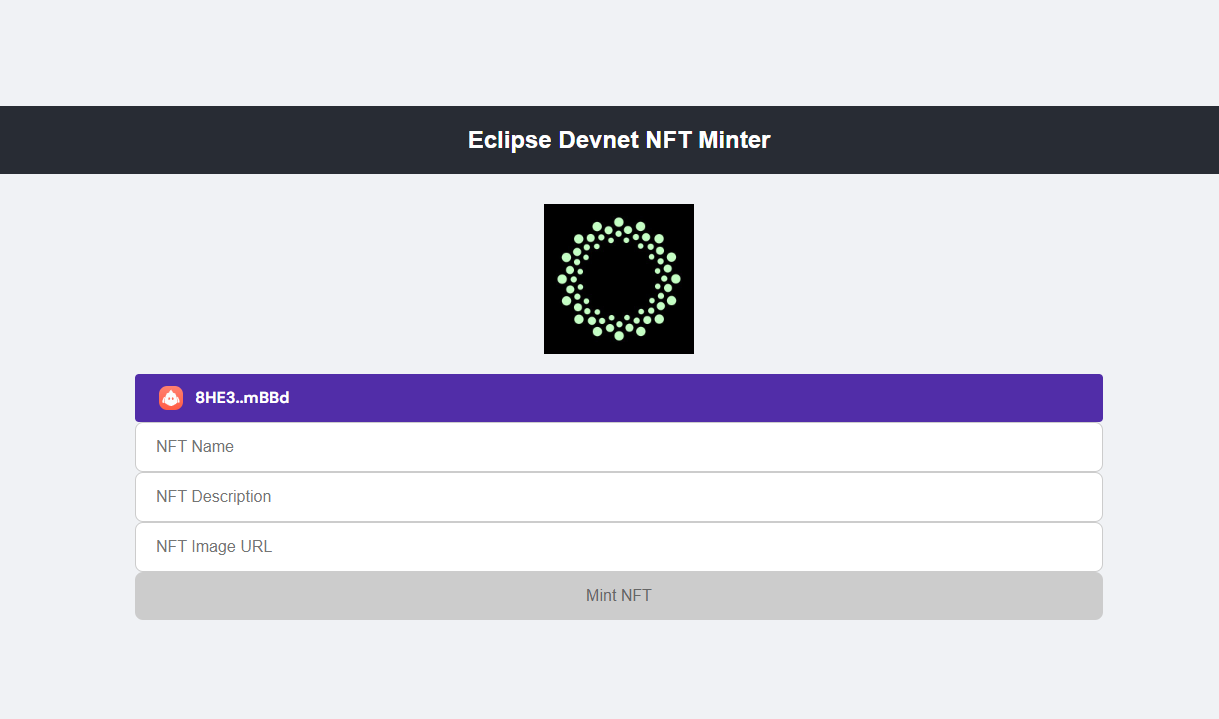
<figure><img src="/files/VfemMfHeHy5NXULXnKFu" alt=""><figcaption><p>NFT Minter Sample UI</p></figcaption></figure>

{% hint style="success" %}
Feel free to edit the code snippets and add more functionality. Remember you can always upgrade your smart contract program & corresponding IDL file using Anchor, and update the UI as required in your React App front-end.
{% endhint %}


---

# Agent Instructions
This documentation is published with GitBook. GitBook is the documentation platform designed so that both humans and AI agents can read, navigate, and reason over technical content effectively. Learn more at gitbook.com.

## Querying This Documentation
If you need additional information that is not directly available in this page, you can query the documentation dynamically by asking a question.

Perform an HTTP GET request on the current page URL with the `ask` query parameter, and the optional `goal` query parameter:

```
GET https://docs.eclipse.xyz/developers/tutorials-and-guides/developer-guides/dapp-deployment-tutorial-eclipse-devnet/building-a-react-app-front-end/step-6-implement-the-ui-for-your-nft-minter-in-app.tsx-with-updated-code.md?ask=<question>&goal=<endgoal>
```

`ask` is the immediate question: it should be specific, self-contained, and written in natural language.
`goal` is optional and describes the broader end goal you are ultimately trying to accomplish on behalf of the user. GitBook uses it to tailor the answer towards what is most useful for that goal.

The response will contain a direct answer to the question and relevant excerpts and sources from the documentation.

Use this mechanism when the answer is not explicitly present in the current page, you need clarification or additional context, or you want to retrieve related documentation sections.
