> For the complete documentation index, see [llms.txt](https://docs.eclipse.xyz/llms.txt). Markdown versions of documentation pages are available by appending `.md` to page URLs; this page is available as [Markdown](https://docs.eclipse.xyz/developers/tutorials-and-guides/developer-guides/dapp-deployment-tutorial-eclipse-devnet/building-a-react-app-front-end/step-5-start-the-development-server-and-verify-setup.md).
# Step 5: Start the Development Server and Verify Setup
After configuring your project with necessary dependencies and adjusting the Webpack configuration for browser compatibility, the next step is to start your React app's development server. This will allow you to verify that your setup is correct and that your application is ready for development and interaction with the Eclipse Devnet.
**Starting the Development Server**
1. **Open Your Project's Terminal**:
* Navigate to the terminal within Visual Studio Code or your preferred terminal application. Ensure you're in the root directory of your `nftminterfrontend` project.
2. **Run the Development Server**:
* Execute the following command to start the development server:
```sql
npm start
```
* Alternatively, if you have configured your project to use `react-app-rewired` for overriding the Webpack configuration without ejecting from `create-react-app`, make sure to run:
```arduino
npm run start
```
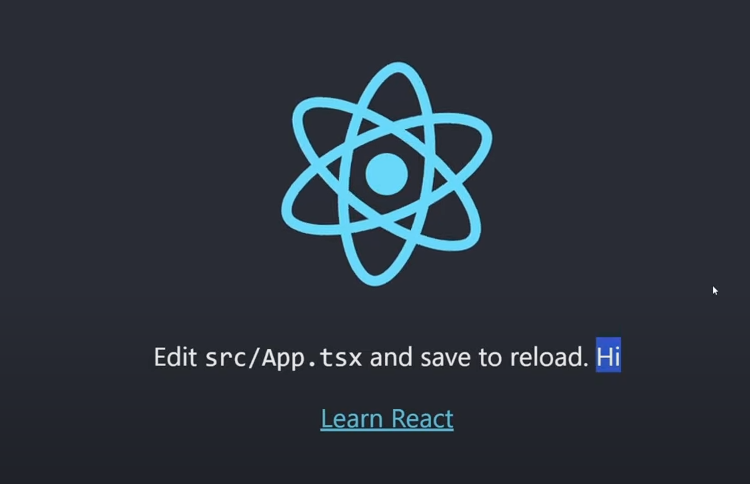
* This command compiles your application and serves it locally, usually opening your default web browser to `http://localhost:3000/` automatically, where you can view your running application.\
**Verifying Your Setup**
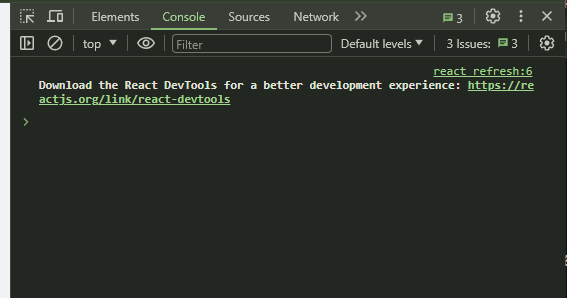
* **Check Browser Console**: Once your app is running in the browser, open the developer console (usually accessible with F12 or right-click > "Inspect" > "Console" tab). Look for any errors that might indicate issues with the Webpack configuration, missing dependencies, or other setup problems.
Browser Console - No errors
* **Test Blockchain Connectivity**: If your app includes initial code to establish a connection to the Eclipse blockchain or interact with it, verify that these functionalities are working as expected. For example, you might have code to connect to the Eclipse blockchain's devnet and fetch the balance of a wallet address; ensure this executes without errors.
* **UI Rendering**: Ensure that your application's UI renders correctly and that any React components related to Solana interactions (e.g., wallet connection buttons) are visible and functioning.
**Troubleshooting**
* **Module Not Found Errors**: If you encounter errors related to missing modules or packages, double-check your `package.json` to ensure all necessary dependencies are listed and correctly installed with `npm install`.
* **Blockchain Connection Issues**: Ensure you're pointing to the correct RPC URL for the Eclipse blockchain's devnet and that your Solana wallet adapter setup is correctly configured for wallet connections.
* **Webpack Configuration Errors**: If you run into issues related to the Webpack configuration, review your `webpack.config.js` file or the configuration overrides via `react-app-rewired` to ensure they match the instructions provided.
**Next Steps**
* With your development server running and setup verified, you're ready to proceed with building out the front-end of your NFT minter application. This includes creating UI components for interacting with your smart contract, such as minting NFTs, and integrating wallet functionality for transactions on the Eclipse devnet.
* Consider implementing features step-by-step, continually testing and verifying functionality through the development server to ensure a smooth development process.
Starting the development server and verifying your setup confirms that your project environment is correctly configured for developing a blockchain-enabled React application, setting the stage for further development and blockchain integration.
---
# Agent Instructions
This documentation is published with GitBook. GitBook is the documentation platform designed so that both humans and AI agents can read, navigate, and reason over technical content effectively. Learn more at gitbook.com.
## Querying This Documentation
If you need additional information that is not directly available in this page, you can query the documentation by asking a question.
Perform an HTTP GET request on the following URL with the `ask` and `goal` query parameters:
```
GET https://docs.eclipse.xyz/developers/tutorials-and-guides/developer-guides/dapp-deployment-tutorial-eclipse-devnet/building-a-react-app-front-end/step-5-start-the-development-server-and-verify-setup.md?ask=&goal=
```
`ask` is the immediate question: it should be specific, self-contained, and written in natural language.
`goal` is what the user is ultimately trying to achieve, the reason they need the answer. Sharing it helps GitBook give you a better, more relevant answer. A goal is most helpful when it describes the outcome the user wants rather than restating the question. For example, with `ask=how do I create an API token`, a goal like `automate deployments from our CI pipeline` lets GitBook tailor the answer to that use case.
The response will contain a direct answer to the question and relevant excerpts and sources from the documentation.
Use this mechanism when the answer is not explicitly present in the current page, you need clarification or additional context, or you want to retrieve related documentation sections.