> For the complete documentation index, see [llms.txt](https://docs.eclipse.xyz/llms.txt). Markdown versions of documentation pages are available by appending `.md` to page URLs; this page is available as [Markdown](https://docs.eclipse.xyz/developers/tutorials-and-guides/developer-guides/dapp-deployment-tutorial-eclipse-devnet/creating-an-anchor-project-in-visual-studio-code/step-7-verify-program-deployment-on-the-eclipse-devnet-explorer.md).
# Step 7: Verify Program Deployment on the Eclipse Devnet Explorer
After deploying your smart contract to the Solana blockchain, it's essential to verify that the deployment was successful and the program is now live. This can be done using the Eclipse blockchain's devnet explorer, a powerful tool for inspecting transactions, accounts, and programs on the blockchain.
**Verifying Your Deployment**
1. **Obtain Your Program ID**:
* After deploying your program, the terminal outputs a Program ID. Copy this ID; you'll need it for verification.
2. **Visit the Eclipse Devnet Explorer**:
* Open a web browser and navigate to the Eclipse Devnet Explorer at .
3. **Search for Your Program ID**:
* In the Explorer's search bar, paste your Program ID and press Enter or click the search icon.
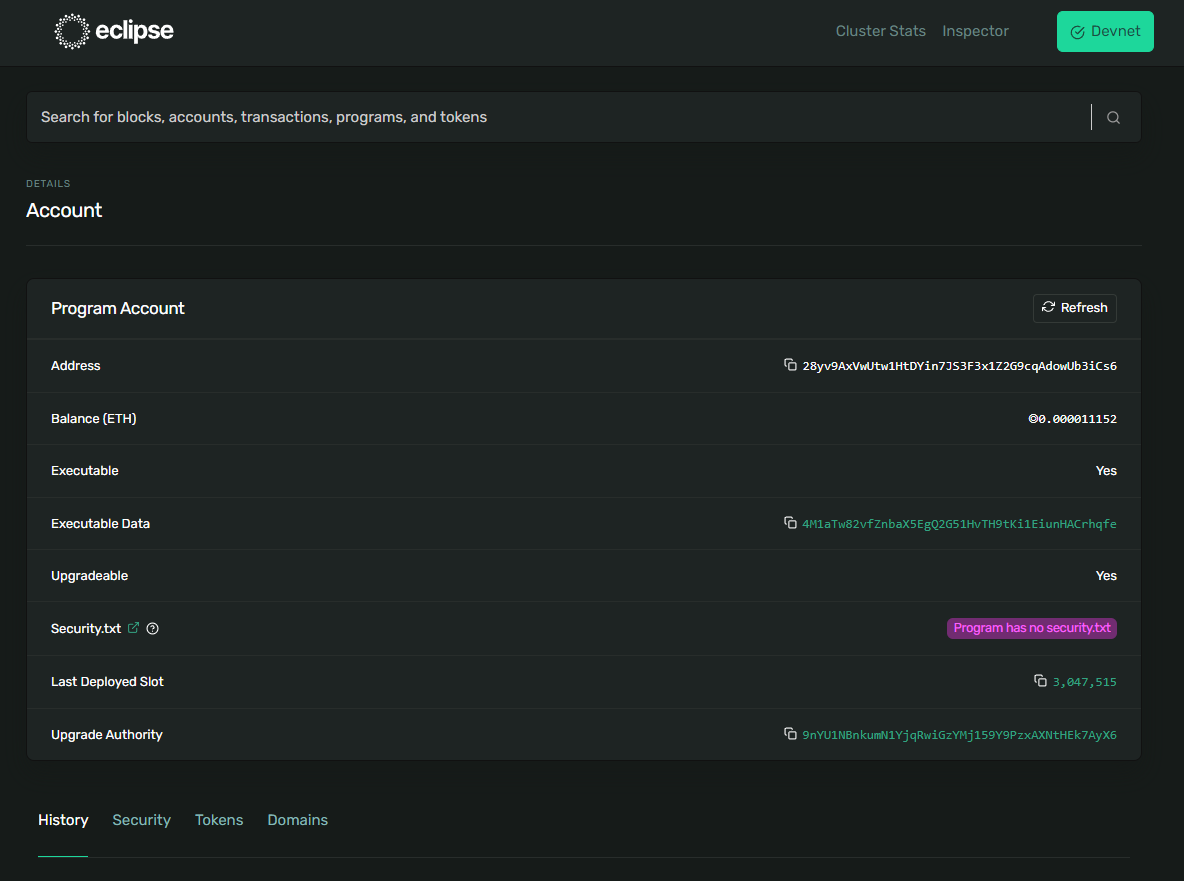
* The Explorer will display information related to your Program ID, including the program's deployment status, recent transactions involving the program, and more.
Eclipse Devnet Explorer
**What to Look for**
* **Account Information**: Ensure that the account details page confirms the account type as a Program and that it is associated with your deployment.
* **Transaction History**: Check for the initial deployment transaction, which should be listed among the recent activities for your Program ID.
**Troubleshooting**
* **No Results Found**: If the Explorer does not show your program or reports it as not found, double-check the Program ID for any typos. If it still doesn't appear, there may have been an issue with the deployment process. Consider redeploying your program and ensuring the terminal confirms successful deployment.
* **Incorrect Information**: If the displayed information does not match your expectations (e.g., wrong account type or no deployment transaction), verify that you're looking at the correct network (devnet) and that the Program ID matches exactly with what was output during deployment.
---
# Agent Instructions
This documentation is published with GitBook. GitBook is the documentation platform designed so that both humans and AI agents can read, navigate, and reason over technical content effectively. Learn more at gitbook.com.
## Querying This Documentation
If you need additional information that is not directly available in this page, you can query the documentation by asking a question.
Perform an HTTP GET request on the following URL with the `ask` and `goal` query parameters:
```
GET https://docs.eclipse.xyz/developers/tutorials-and-guides/developer-guides/dapp-deployment-tutorial-eclipse-devnet/creating-an-anchor-project-in-visual-studio-code/step-7-verify-program-deployment-on-the-eclipse-devnet-explorer.md?ask=&goal=
```
`ask` is the immediate question: it should be specific, self-contained, and written in natural language.
`goal` is what the user is ultimately trying to achieve, the reason they need the answer. Sharing it helps GitBook give you a better, more relevant answer. A goal is most helpful when it describes the outcome the user wants rather than restating the question. For example, with `ask=how do I create an API token`, a goal like `automate deployments from our CI pipeline` lets GitBook tailor the answer to that use case.
The response will contain a direct answer to the question and relevant excerpts and sources from the documentation.
Use this mechanism when the answer is not explicitly present in the current page, you need clarification or additional context, or you want to retrieve related documentation sections.